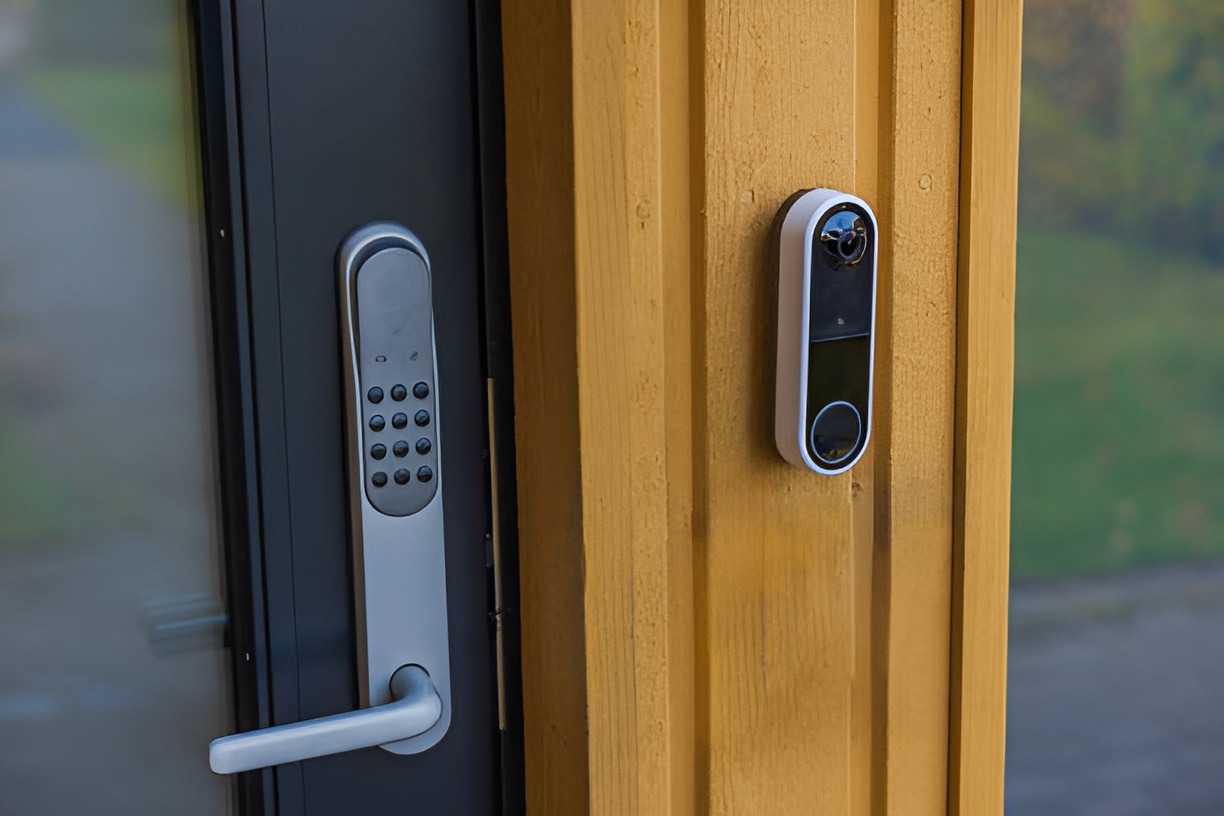
Highlights:
- Ensure you have a compatible smartphone or tablet, a stable WiFi network, and the Google Home app installed before starting setup.
- Follow the Google Home app step-by-step instructions, including scanning the QR code and entering your WiFi credentials carefully.
- Your Nest Doorbell can still connect to WiFi without a QR code by using Bluetooth detection in the app.
- Troubleshoot common WiFi issues by checking signal strength, verifying passwords, switching WiFi bands, and restarting devices if needed.
- Multiple smartphones and tablets can access the doorbell once it’s connected, allowing family members to receive alerts and view live video.
- Optimize performance and security by updating firmware, using a strong WiFi password, limiting bandwidth usage, and placing the router strategically.
Installing a Nest Doorbell is exciting—it brings convenience, security, and peace of mind to your home. But getting it online can be confusing if you’re not familiar with smart devices. In this guide, we’ll walk you through how to connect Nest Doorbell to WiFi on any smartphone or tablet, covering everything from preparation to troubleshooting.
Why Connect Your Nest Doorbell to WiFi?
A WiFi connection is essential for your Nest Doorbell to work properly. Without it, you won’t get notifications, live video, or the ability to interact with visitors remotely. Connecting to WiFi also ensures your device can receive updates, security patches, and new features.
Here’s what a WiFi connection enables:
- Real-time alerts on your phone or tablet.
- Live video streaming from your doorbell.
- Two-way audio to communicate with visitors.
- Integration with other smart home devices.
Without WiFi, your doorbell is basically just a camera without any of the smart features.
What You’ll Need Before Getting Started
Before attempting to connect your Nest Doorbell to WiFi, it’s important to gather all the essentials to ensure a smooth setup. Proper preparation makes your Google Nest Doorbell installation much easier and helps avoid frustration later.
Here’s what you should have ready:
- A compatible smartphone or tablet (iOS 12 or later, Android 7.0 or later).
- The Google Home app installed on your device.
- A stable WiFi network with at least 2.4 GHz or 5 GHz compatibility.
- Your WiFi password ready.
- The Nest Doorbell fully installed or mounted if you’re doing a wired setup.
Checking these beforehand can save time and prevent frustration.
How Do You Set Up Your Nest Doorbell on a Smartphone or Tablet?
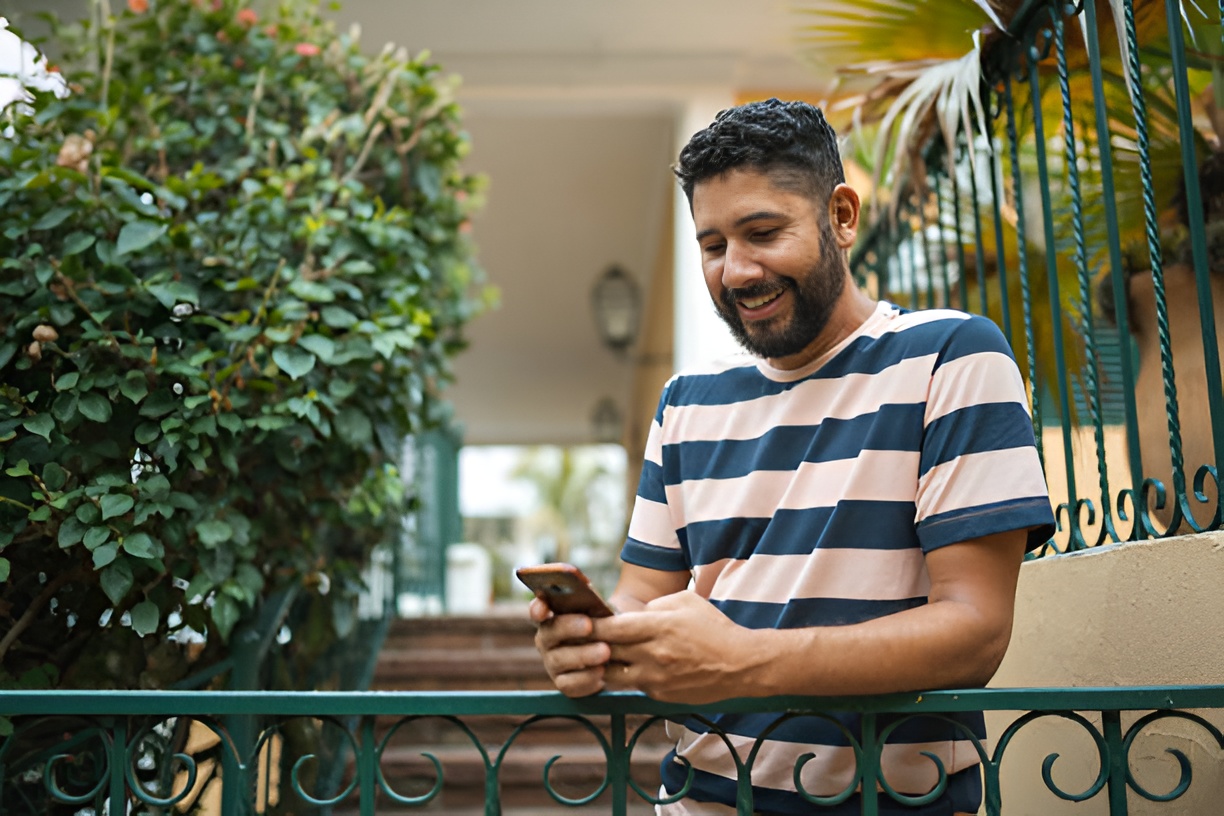
Setting up your Nest Doorbell is easier than it seems. Follow these steps carefully:
- Open the Google Home App
If you haven’t installed it yet, download it from the App Store or Google Play Store. Sign in with your Google account. - Add a New Device
Tap the plus (+) icon, then select “Set up device” → “New devices” and choose your home. - Scan the QR Code
Your Nest Doorbell has a QR code on the back or on the setup card. Scan it with your smartphone or tablet camera. - Follow the On-Screen Instructions
The app will guide you through mounting verification, connecting to WiFi, and testing the connection. - Enter Your WiFi Credentials
Select your WiFi network and type in the password carefully. Make sure it’s case-sensitive. - Wait for the Doorbell to Connect
The app will show a “Connecting” status. This may take a minute or two. Once connected, the status will change to “Online.” - Test the Doorbell
Use the app to test live video and audio. Make sure notifications are working properly.
Can I Connect Nest Doorbell to WiFi Without a QR Code?
Yes, if your QR code is damaged or missing, you can still connect the doorbell:
- Open the Google Home app and choose “Set up device” → “New devices.”
- Select “Don’t have a QR code?”
- The app will detect nearby Nest devices via Bluetooth.
- Follow the prompts to connect manually to your WiFi network.
This is handy if you misplaced the setup card or bought a refurbished device.
What to Do If WiFi Connection Fails
Sometimes, your Nest Doorbell may struggle to connect. Here are common issues and fixes:
- Weak WiFi Signal: Move your router closer to the doorbell or use a WiFi extender.
- Incorrect Password: Double-check your network password. Pay attention to capital letters and symbols.
- 2.4 GHz vs 5 GHz: Some Nest Doorbells work better on 2.4 GHz networks. Try switching bands if you have a dual-band router.
- Router Settings: Make sure MAC address filtering isn’t blocking the doorbell.
- Restart Devices: Power cycle your router and your Nest Doorbell.
If problems persist, contact Google Nest support—they can guide you through advanced troubleshooting.
Can You Connect Multiple Devices to the Same Doorbell?

Yes! Once your Nest Doorbell is connected to WiFi, multiple smartphones and tablets can access it. Here’s how:
- Open the Google Home app on each device.
- Tap “Add” → “Set up device” → “Works with Google.”
- Log in with the same Google account or invite family members to your home in the app.
- Each device will get notifications, live feed access, and two-way communication.
This is great for families or roommates who all need to monitor the front door.
How to Improve WiFi Performance for Your Nest Doorbell
Even after connecting, performance may lag if WiFi is weak. Consider these tips:
- Use a dual-band router and connect to the best available band.
- Place the router centrally to reduce interference from walls or metal objects.
- Limit other devices from hogging bandwidth during live video streaming.
- Use a WiFi extender or mesh network if your doorbell is far from the router.
- Keep your Nest Doorbell firmware updated for optimal performance.
How to Reconnect Nest Doorbell if WiFi Changes
If you change your network or password, your doorbell won’t connect automatically. Follow these steps:
- Open the Google Home app and select your Nest Doorbell.
- Go to Device Settings → WiFi → Forget Network.
- Repeat the setup process to connect to the new WiFi.
It’s a simple process but requires access to the original app account.
Are There Security Considerations When Connecting to WiFi?
Yes, security is crucial for smart home devices:
- Use strong WiFi passwords with a mix of letters, numbers, and symbols.
- Enable two-factor authentication on your Google account.
- Avoid using public WiFi for setup or monitoring.
- Regularly check for firmware updates to fix vulnerabilities.
A secure WiFi connection protects both your device and your home network.
Final Thoughts
Connecting your Nest Doorbell to WiFi on any smartphone or tablet doesn’t have to be complicated. With proper preparation, careful following of the Google Home app prompts, and a few troubleshooting tips, you can get your device online in minutes.
Remember:
- Always verify your WiFi strength and password.
- Keep your app and device firmware updated.
- Don’t hesitate to troubleshoot or consult support if needed.
Once connected, you’ll enjoy real-time video, alerts, and smart home integration, making your front door smarter and safer.